Reference Graph: Explore Citation Topology, Topical Clusters & AI Cited Writing#
The Biblion Reference Graph transforms your manuscript citations and personal library into an interactive, multi-dimensional knowledge network. Rather than reviewing references as flat alphabetical lists, researchers and clinicians can visualize the intellectual lineage of their field, filter thematic sub-disciplines with live checkboxes, uncover missing co-cited benchmarks, and synthesize cited academic prose directly inside Microsoft Word.
Video Walkthrough: ▶️ Watch Biblion Reference Graph & Auto-Pilot on YouTube (https://youtu.be/YZCWdD_Y5Ak)
1. What It Does#
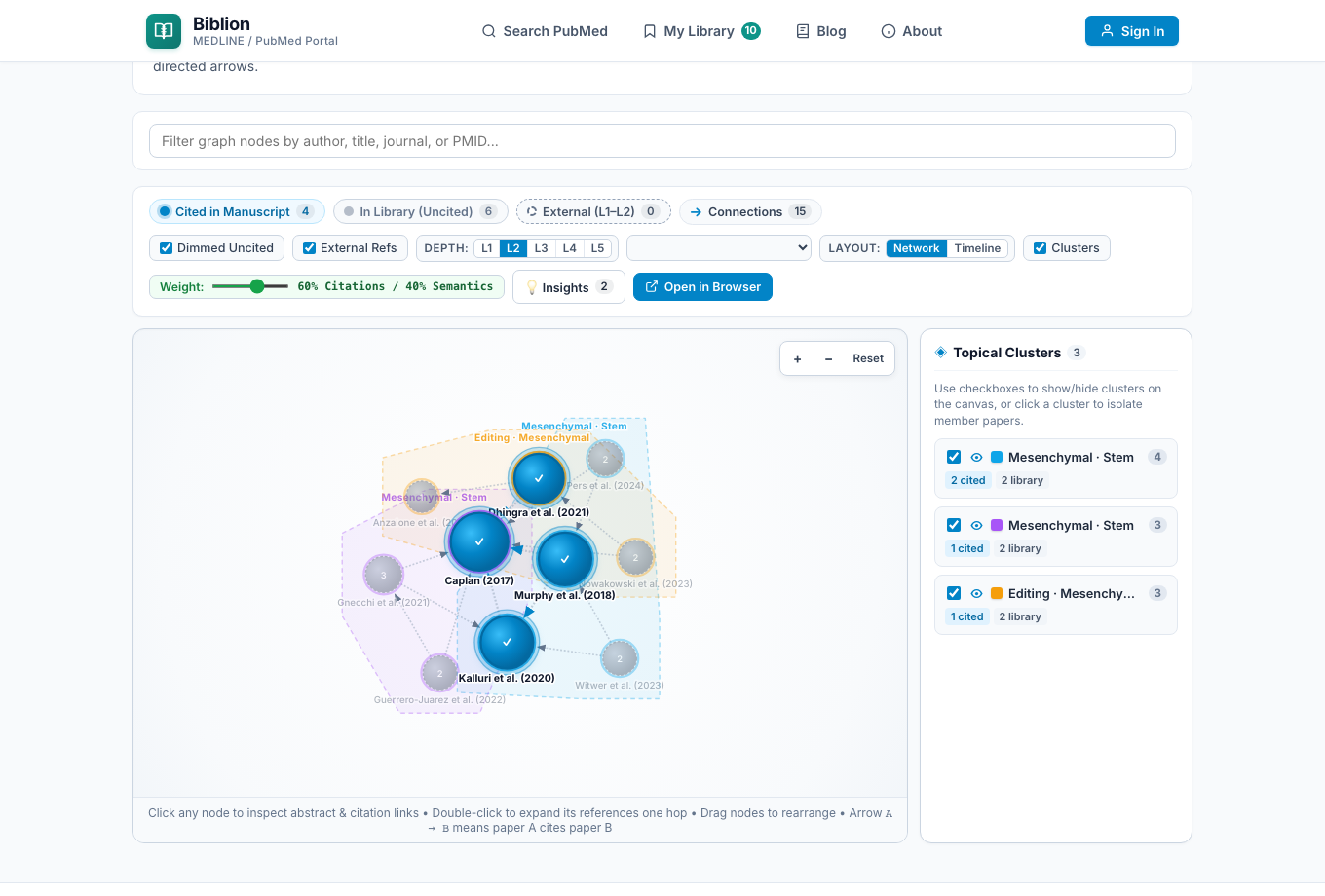
The Reference Graph maps every paper in your Personal Library, your active Microsoft Word manuscript citations, and external PubMed discovery records into an interactive vector canvas:
 Highlighted Emerald Nodes: Articles from your personal library that are cited in your active Word manuscript (features a checkmark
 ✓badge and glowing aura, scaled by citation degree). Dimmed Slate Nodes: Articles saved in your personal library that are not yet cited, revealing unreferenced evidence in your collection.
 Dashed Blue Nodes: External PubMed papers uncovered through multi-hop citation traversals (Depth Level 1 to 5, up to 500 nodes) with dashed perimeters.
 Expanded Amber Halo Nodes: Papers whose 1-hop neighborhood (directly connected citing and referenced papers) was locally expanded via double-click or the Node Inspector without increasing global depth.
 Directed Citation Arrows (A → B) & Semantic Sentiment: Flow of academic attribution from citing paper to cited paper, annotated with Confirms (
✓), Extends (↗), Contradicts (⚡), or Mentions (•) sentiment badges. Hybrid Topical Communities & Visibility Checkboxes: Modularity-based grouping of papers combining citation links with Contextual AI Relevance Scoring, complete with interactive checkboxes to show or hide individual clusters on the canvas.
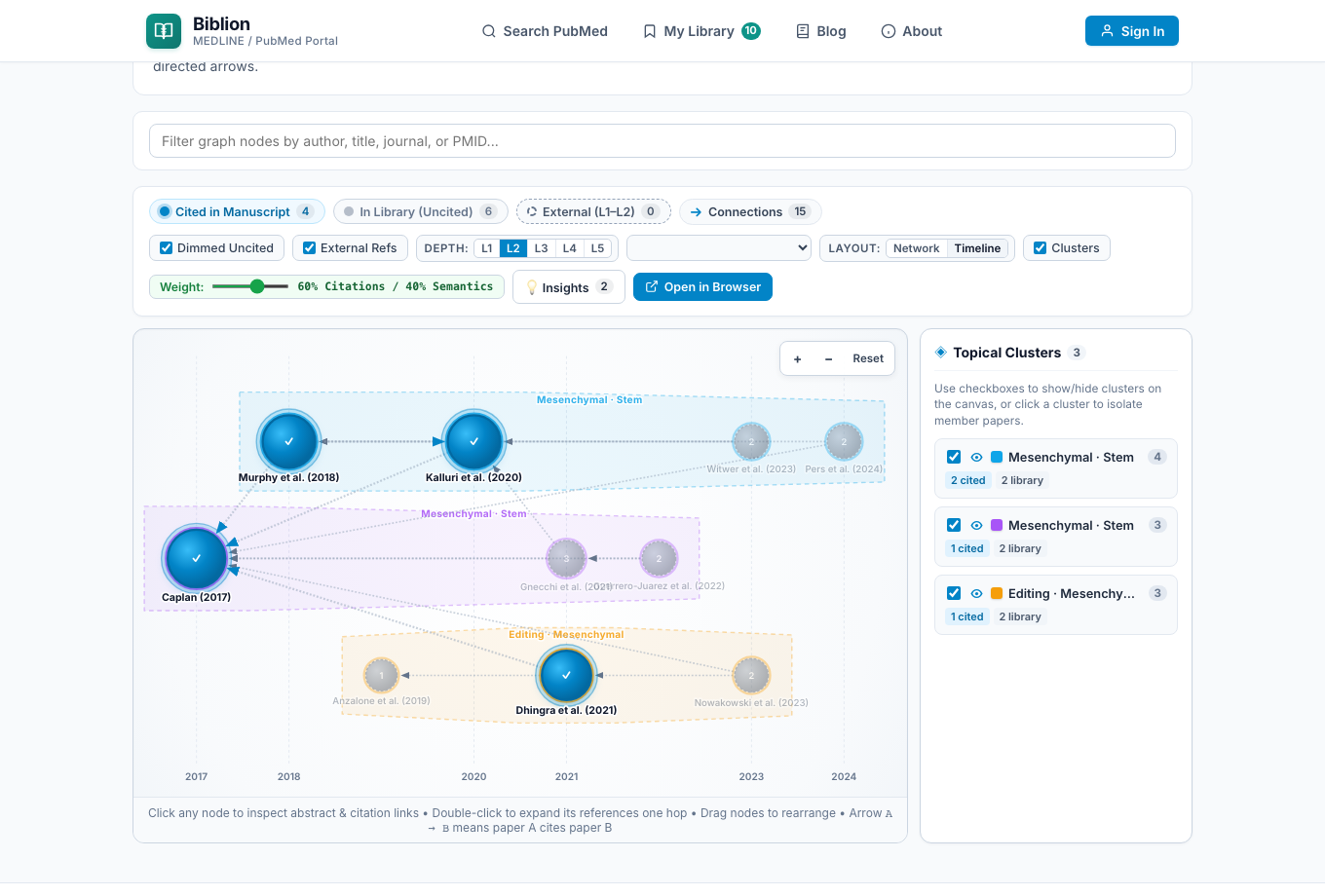
 Publication Timeline Layout: Reorganizes nodes left-to-right along chronological publication year axes to reveal the historical evolution of your field.
 AI Discovery Insights & Graph-Driven Word Auto-Pilot: Automated identification of co-cited seminal papers missing from your draft, library coverage gaps, structural network roles (
🏛️ Seminal,⚡ Frontier,🌉 Bridge), and one-click cited manuscript synthesis in Microsoft Word.
2. Why It Matters for Biomedical Authors#
Writing a rigorous biomedical paper or grant proposal requires synthesizing decades of research without missing foundational benchmarks or recent breakthroughs. Conventional reference managers treat citations as static strings of text. The Biblion Reference Graph provides four major advantages:
- Defend Against Peer-Review Citation Gaps: Peer reviewers frequently ask, "Why did the authors fail to cite the seminal study on this mechanism?" The Reference Graph's Co-Citation engine identifies external PubMed papers cited by two or more of your existing references before reviewers see your draft.
- Audit Manuscript Citation Balance: Visually inspect whether your manuscript relies too heavily on a narrow clique of papers while leaving entire saved library clusters uncited.
- Isolate Sub-Topics While Drafting: Use the Topical Clusters checkboxes and the Show on Canvas toggle pill to hide turned-off clusters and focus on one thematic subsection at a time.
- Generate Cited Word Prose with Graph Topology: Pair your graph directly with Auto-Pilot to transform rough outline notes in Microsoft Word into polished, accurately cited academic paragraphs guided by structural graph roles (
🏛️ Seminal,⚡ Frontier,🌉 Bridge).
3. How to Access the Reference Graph#
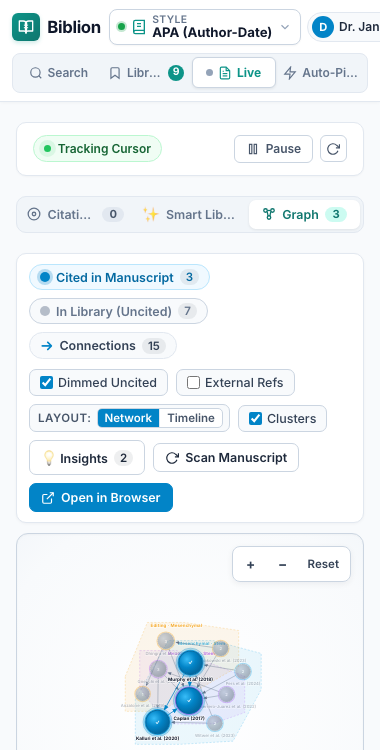
You can use the Reference Graph both directly inside the Microsoft Word Add-in taskpane and in a full-screen desktop browser window.
In the Microsoft Word Add-in#
- Open your manuscript in Microsoft Word and launch the Biblion taskpane.
- Click Live (
Live References) in the top navigation bar. - Select the Reference Graph view.
- Biblion automatically scans your document's Word Content Controls, matches them against your Personal Library, and renders the interactive network inside the taskpane.
In Full-Screen Browser Mode & Real-Time Word Synchronization#
You can open the Reference Graph in your standalone web browser at any time:
- Click Open in Browser from the Word taskpane toolbar, or
- Sign in to your Biblion account in any desktop browser and navigate to Reference Graph.
Real-Time Synchronization:
Whenever you insert or remove a citation in Microsoft Word, your open browser companion tab and Word taskpane stay synchronized in real time:
- Newly cited manuscript papers immediately transition to vibrant emerald nodes with checkmark
✓badges. - A live status banner confirms active synchronization with your Word session.
- You can pan, zoom, adjust the hybrid clustering weight slider, toggle cluster visibility checkboxes, and explore multi-hop citation horizons on a wide monitor while writing in Word.
4. Visual Encodings & Semantic Edges Explained#
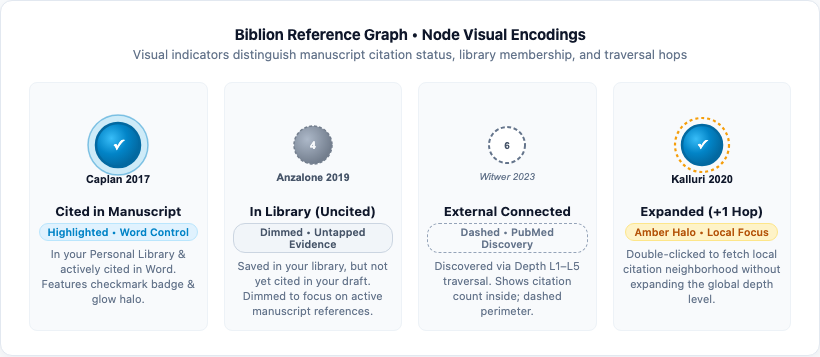
Every visual element on the graph communicates bibliographic status, network centrality, and semantic relationship:
| Visual Element | What It Represents | Benefit to Researchers |
|---|---|---|
Emerald Node (Highlighted) with ✓ Badge | Cited in Manuscript | Confirms which papers from your Personal Library are actively cited in your open Word document. Node radius scales with citation degree. |
| Slate Node (Dimmed) | In Library (Uncited) | Highlights saved papers in your Personal Library that have not yet been cited in your manuscript so no key evidence is forgotten. |
Dashed Blue Node (L1–L5) | External PubMed Discovery Paper | Uncited PubMed articles outside your library discovered via multi-hop citation traversal (up to 500 nodes), ranked by co-citation support. |
Amber Halo Ring (+1 Hop) | On-Demand Expanded Neighborhood | Papers whose direct 1-hop references and citing articles were fetched on demand via double-click or the Node Inspector. |
Directed Arrow (A → B) | Citation Direction (Citing → Cited) | Points from the newer citing paper (A) to the older referenced paper (B). |
Semantic Edge Badges (✓, ↗, ⚡, •) | Citation Sentiment Classification | Evaluates abstract and title context to classify whether a citation Confirms (✓), Extends (↗), Contradicts (⚡), or Mentions (•) prior work. |
| Shaded Convex Hulls | Topical Cluster (Community) | Hybrid community detection grouping closely related papers into color-coded scientific sub-disciplines with automated topic banners. |
5. Toolbar Controls, Layouts & Hybrid Topical Clustering#
The interactive toolbar above the canvas gives you instant control over filtering, multi-hop depth, node budget, layouts, and clustering balance:

5.1 Legend Counters & Filter Toggles#
- Live Counters: Displays real-time counts for Cited in Manuscript, In Library (Uncited), External (L1–L5), and active Connections.
- Dimmed Uncited Checkbox: Uncheck to hide uncited library papers and view only your active manuscript bibliography.
- External Refs Checkbox: Enable or disable live multi-hop PubMed discovery via NCBI ELink.
5.2 Multi-Hop Depth (L1 to L5) & Node Budget (25 to 500)#
- Depth Selector (
L1–L5): Choose how many citation steps outward Biblion explores—from direct references (L1) and co-citation bridges (L2, recommended) up to 5-generation citation horizons (L5). - Node Budget (
25to500Nodes): Scale the maximum rendered nodes from25or50for rapid laptop reviews up to100,250, or500nodes for comprehensive systematic reviews.
5.3 Layout Switcher: Force-Directed Network vs. Chronological Timeline#
- Network (Force-Directed): Physics simulation where citation-linked and semantically similar papers attract while distinct themes repel into natural communities.
- Timeline (Chronological): Organizes papers left-to-right by publication year while preserving directed citation arrows—ideal for tracing how early foundational discoveries evolved into modern clinical trials.
5.4 Hybrid AI Topical Clustering, Weight Slider & Visibility Checkboxes#
Checking Clusters opens the Topical Clusters sidebar and renders shaded convex hulls around each detected scientific community:
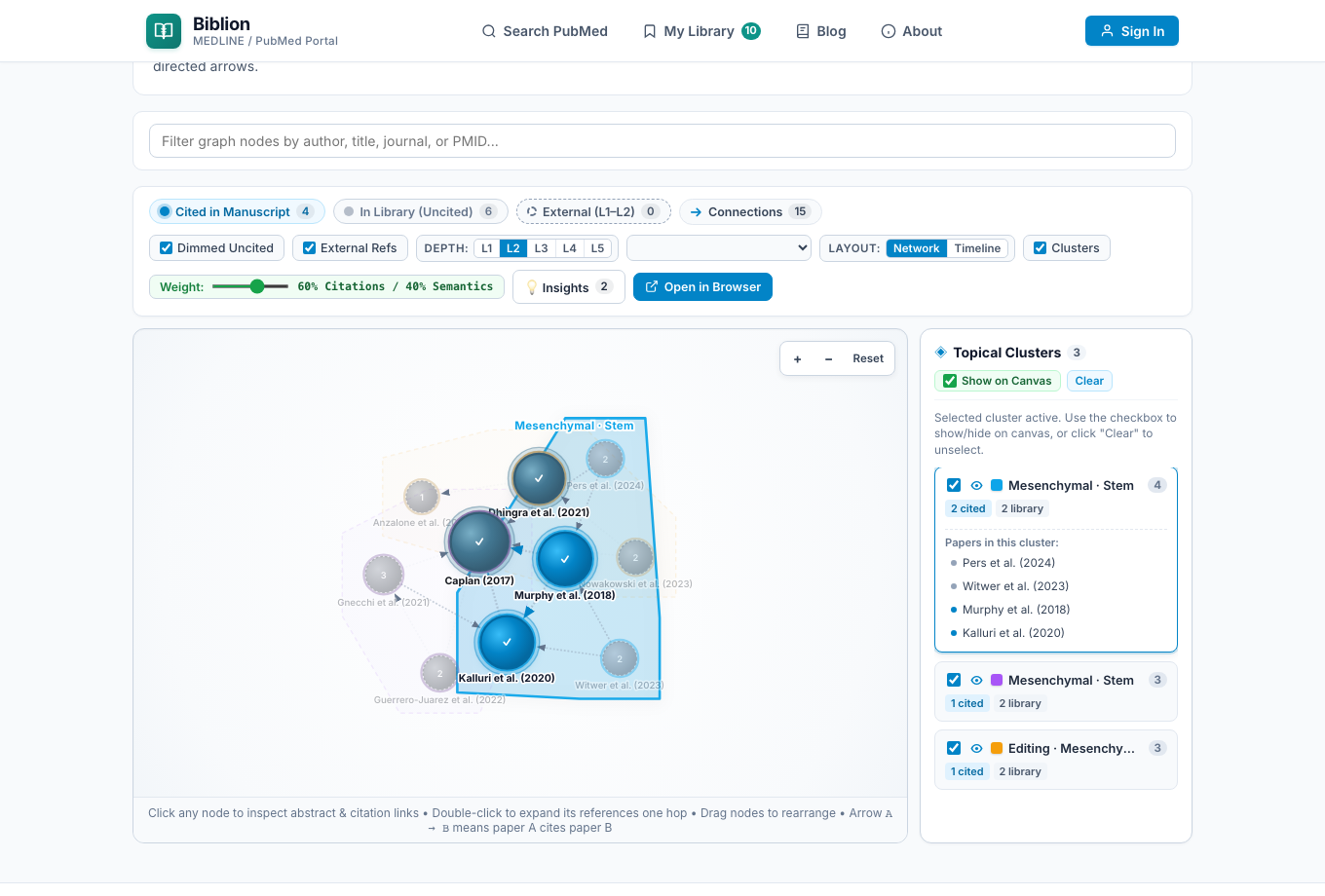
- Hybrid Citation + AI Semantic Clustering Algorithm: Combines undirected citation adjacency with pairwise Contextual AI Relevance Scoring (
Biblion AI Semantic Relevance Engine+ MeSH/title/abstract cosine similarity) using the formula:
Combined Edge Weight = α · Citation Link + (1 − α) · Semantic Similarity
- Real-Time Weight Balance Slider (
Citations vs. AI Semantics): Dragging the Weight slider (0%to100%) automatically recomputes community assignments via modularity optimization and redraws all cluster hulls and node colors in real time—no page reload or manual refresh required. - Cluster Visibility Checkboxes (Show / Hide on Canvas):
- Each cluster card in the right-hand Topical Clusters sidebar includes a checkbox (and eye icon) to toggle that cluster's visibility on the canvas.
- When a cluster is unchecked (turned off), its shaded hull is hidden and all nodes and edges belonging exclusively to that turned-off cluster are removed from the graph canvas, allowing you to declutter large networks and focus only on active themes.
- When you click a cluster card to inspect it, a Show on Canvas checkbox pill appears in the sidebar header so you can toggle the selected cluster's canvas visibility with one click.
6. AI Discovery Insights & Interactive Node Inspector#
6.1 AI Discovery Insights Drawer (💡 Insights)#
Clicking Insights opens an automated topological audit of your bibliography powered by the Biblion AI Semantic Relevance Engine:
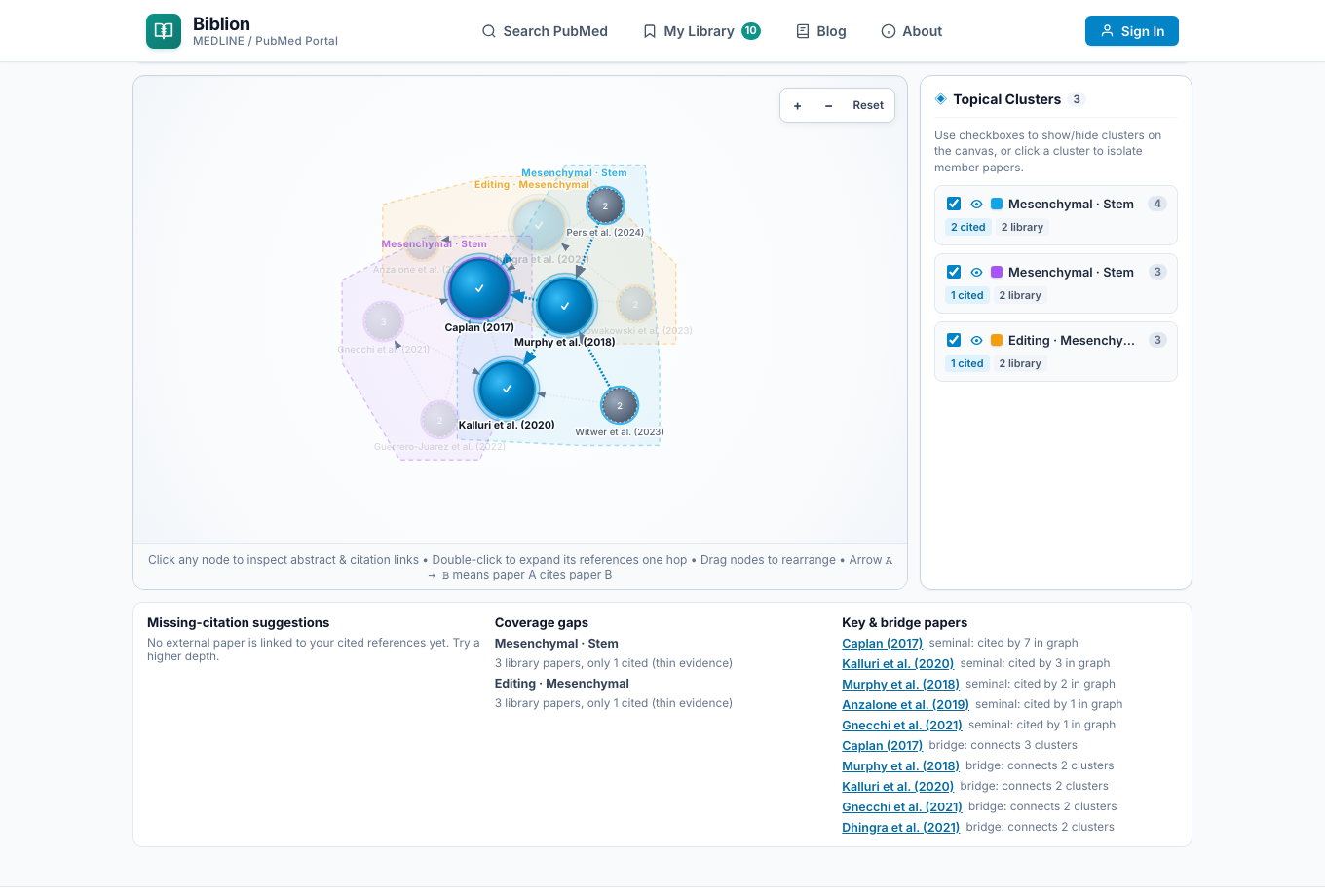
- Missing-Citation Suggestions (Co-Citation Analysis): Identifies external PubMed papers cited by multiple references in your manuscript that you haven't cited yet, complete with a + Library button to save them immediately.
- Library Coverage Gaps: Flags saved library clusters with
0% Cited(unused themes) or only a single citation (Thin Clusters) so you don't overlook curated evidence while writing. - Structural Network Roles:
- 🏛️ Seminal Foundation Papers: High in-degree authority papers that anchor the field.
- ⚡ Frontier Literature: Recent publications (last 2–3 years) with rapid citation momentum.
- 🌉 Interdisciplinary Bridge Papers: Boundary-spanning studies connecting two or more distinct topical clusters.
6.2 Interactive Node Inspector#
Clicking any node on the canvas opens the Node Inspector card below the graph:
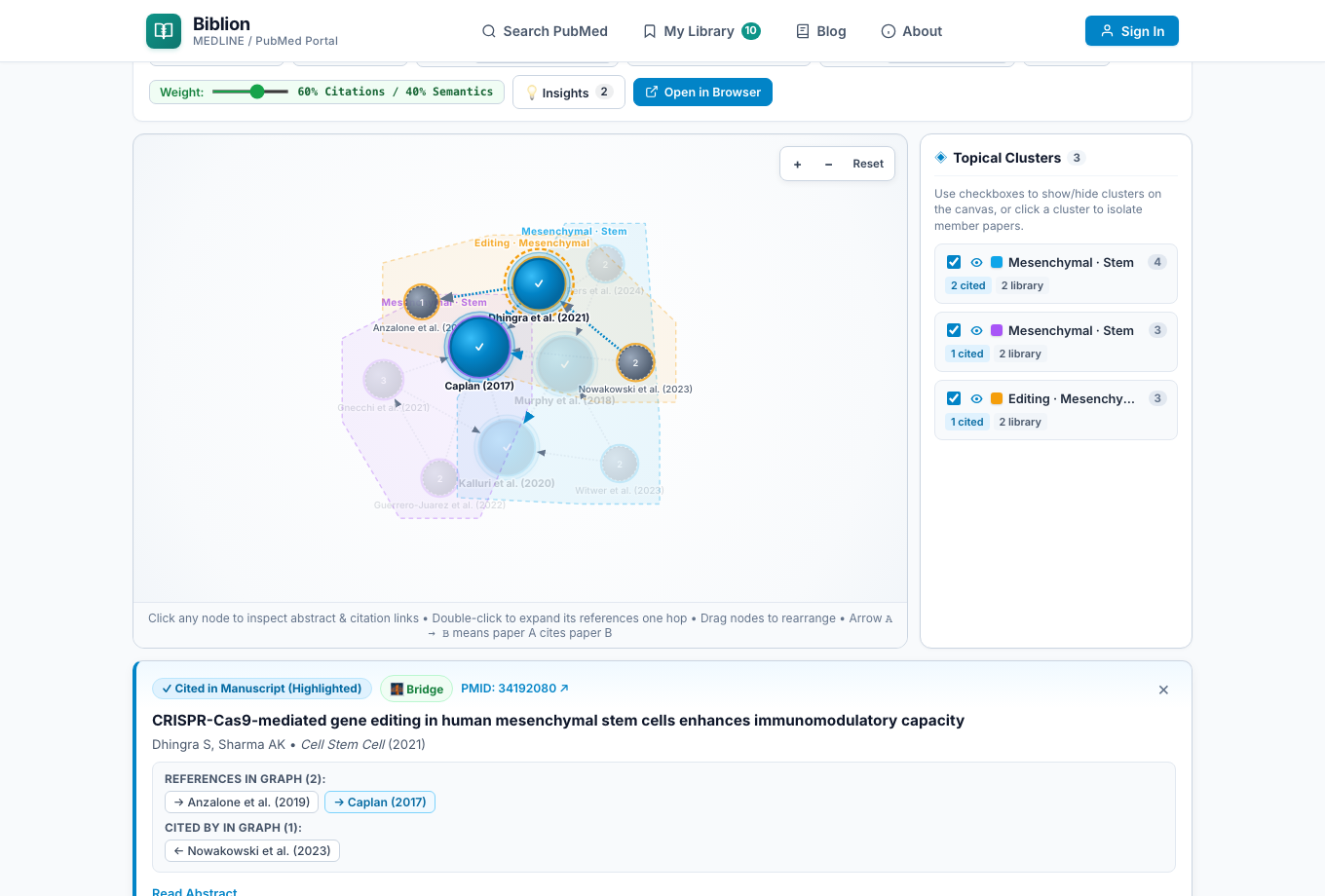
- Status & Role Badges: Displays whether the paper is Cited in Manuscript, In Library (Uncited), or External PubMed Paper, alongside its structural role pills (
🏛️ Seminal,⚡ Frontier,🌉 Bridge). - In-Place Abstract Reader: Click Read Abstract to fetch and read the full structured PubMed abstract directly inside the graph view.
- One-Click Manuscript & Graph Actions:
- Cite at Cursor in Word: Inserts the formatted in-text citation at your active Microsoft Word cursor and updates your document's Bibliography automatically.
- + Save to Library: Saves an external discovery node directly into your Personal Library.
- Expand (+1 Hop): Fetches that specific paper's direct references and citing articles without expanding the entire graph.
7. How to Use the Reference Graph to Generate Cited Text in Microsoft Word#
Your Reference Graph topology directly powers Auto-Pilot inside the Microsoft Word Add-in, turning rough outline notes or draft claims into publication-ready, accurately cited academic prose.
Step-by-Step Workflow#
- Highlight Draft Notes or Claims in Microsoft Word:
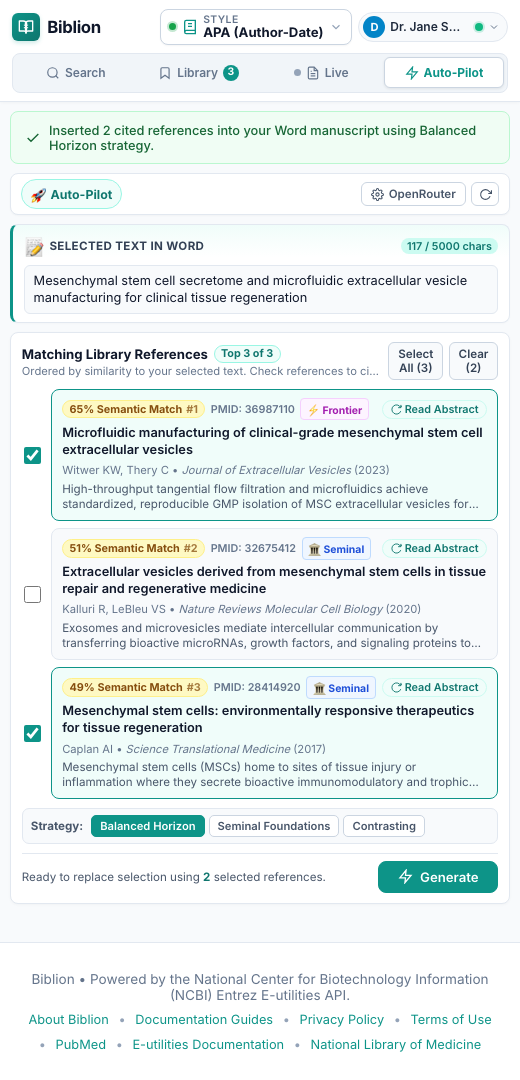
Select any rough sentence, bullet points, or paragraph in your Word manuscript (10 to 5,000 characters) and switch to the Auto-Pilot tab in the Biblion taskpane.
- Review Two-Stage Semantic Ranking & Graph Role Badges:
- Stage 1 (0 ms Instant Preview): Displays an immediate lexical match preview from your Personal Library.
- Stage 2 (~350 ms Contextual AI Relevance Scoring): The Biblion AI Semantic Relevance Engine re-ranks your candidate references and displays Semantic Match Percentage badges (
96% Semantic Match #1) alongside their Reference Graph structural roles: - 🏛️ Seminal: Foundational anchor paper in your citation graph.
- ⚡ Frontier: Cutting-edge recent study.
- 🌉 Bridge: Cross-disciplinary connector linking distinct clusters.
- Click Read Abstract on any card to flip it in 3D and verify its abstract in place, then check the boxes next to the references you want to cite.
- Select a Graph-Aware Synthesis Strategy:
Choose how Auto-Pilot should weave your checked references into prose using the Strategy selector bar:
- Balanced Horizon (Default): Pairs a foundational Seminal anchor with a recent Frontier study to establish historical context and current state-of-the-art.
- Seminal Foundations: Prioritizes high-centrality canonical authority papers—ideal for Introduction and Methods sections.
- Contrasting: Synthesizes consensus findings alongside divergent or competing perspectives—ideal for Discussion and literature defense sections.
- Click Generate to Insert Cited Prose into Word:
Click Generate. Auto-Pilot replaces your highlighted draft notes with polished academic prose, inserts live Word Content Control citations in your active citation style (APA, Nature, Vancouver, IEEE, Harvard, AMA, Chicago), updates your document's References bibliography, and automatically marks the newly cited papers as Cited (✓) in your Reference Graph.
Learn More: For full details on AI provider configuration and synthesis railguards, see the dedicated Auto-Pilot (AI Cited Writing) Guide.