#Biblion User Guide: Research, Citations & Bibliographies
#1. What Is Biblion?
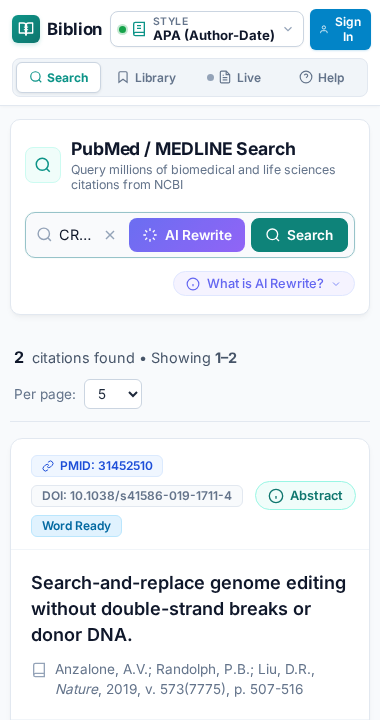
Biblion is a literature search and citation tool for biomedical researchers. It runs as a taskpane inside Microsoft Word and as a standalone web app. Search PubMed, read abstracts, keep a personal library, and insert correctly formatted citations and a reference list without leaving your manuscript.
#2. Installing Biblion in Microsoft Word (Desktop & Web)
#In Desktop Word Application (Recommended — Microsoft Store & AppSource):
The default method recommended by Microsoft for installing Biblion in Desktop Word (Microsoft 365, Word 2019, 2021 on Windows & Mac) is directly through the Microsoft store ecosystem. You can install it via the in-ribbon Add-ins Store dialog or via the Microsoft AppSource web marketplace:
#Pathway 1: In-Ribbon Add-ins Store Dialog (Inside Word)
- Open Desktop Word: Launch Microsoft Word on your computer and open any document. Ensure you are signed in with your Microsoft account.
- Open Add-ins: On the top ribbon, select the Home tab and click Add-ins (or on the Insert tab, click Get Add-ins / Add-ins).
- Search the Store: In the Office Add-ins dialog, select the Store tab (or search bar) and search for Biblion.
- Install Biblion: In the search results, click Add (or Get it now). Review the terms of use and privacy policy, then click Continue.
- Launch Taskpane: The Biblion button will appear in your ribbon under Home or References. Click it to open the taskpane sidebar and start citing!
#Pathway 2: Microsoft AppSource (Web Store Pathway)
Microsoft also provides Microsoft AppSource as the official web store pathway for getting the add-in:
- Navigate to Microsoft AppSource (https://appsource.microsoft.com) in any web browser.
- Search for Biblion in the marketplace search bar.
- Click Get It Now on the Biblion add-in listing and sign in with the Microsoft account associated with your Office 365 subscription.
- Microsoft automatically links the add-in to your Microsoft 365 profile, making Biblion available in Desktop Word and Word on the Web.
Note for Work or School Accounts: If the Office Store or AppSource acquisition is restricted by your organization's IT policy, request your Microsoft 365 administrator to deploy Biblion centrally via the Microsoft 365 Admin Center.
#Alternative: Sideloading via Manifest File (Development & Pre-release)
If you are evaluating a pre-release build or testing locally:
- Download Manifest: From the web application's About page, download
manifest.xml(or savehttps://biosystechnologies.com/manifest.xml). - Open Add-ins Dialog: In Desktop Word, go to Home or Insert → Add-ins.
- Upload Manifest: In the Office Add-ins dialog, select the MY ADD-INS tab → click Manage My Add-ins in the top-right corner → choose Upload My Add-in.
- Select File: Click Browse..., select
manifest.xml, and click Upload.
#In Word on the Web (Office 365 Browser):
- Navigate to word.office.com and open any document.
- Select Insert → Add-ins (or Apps).
- In the dialog, search for Biblion in the Store tab and click Add (or install via Microsoft AppSource), or select Manage My Add-ins → Upload My Add-in to upload
manifest.xml. - Click the Biblion button in the ribbon to open the taskpane.
#3. Choose Your Task
| I want to... | Read |
|---|---|
| Find papers and read abstracts | Searching PubMed & Citing Articles |
| Write better searches with AI | AI Query Rewriter |
| Format citations and the reference list | Citation Styles & Automatic Bibliographies |
| See what a sentence in my manuscript cites | Live References |
| Organise, annotate and export my papers | My Library, Collections & Sync |
| Create an account or reset my password | Account & Sign-In |
| Understand my trial, billing or cancellation | Subscription & Billing |
| Use Biblion outside Word | Using Biblion in a Web Browser |
#4. Five-Minute Quickstart
- Open Biblion. In Word, open the Biblion taskpane. Or open Biblion in a browser.
- Sign in (optional but recommended). Click Sign In → Create Account. You get a 15-day free trial and cloud sync.
- Search. Type a topic, or click an example query, then search.
- Read. Flip a card with its Abstract button.
- Keep. Click Save to Library on papers you want.
- Cite. In Word, place your cursor in the manuscript and click Insert Citation. In a browser, click Copy Citation and paste.
- Format. In Word, pick your journal's style from the style selector. Biblion reformats everything.
#5. The Main Areas of Biblion
- Search: PubMed / MEDLINE search
- My Library: saved articles, collections, tags, notes, export
- Live References: citations at your cursor (Word only)
- About: product overview, Word Add-in installation, user guides, contact & support email
- Your name menu: Subscription & Billing, Edit Account, AI Settings (BYOK), Sign Out
#6. Help
The About page links to all guides and contact details (support@biosystechnologies.com). The same guides are available from your name menu → Documentation Guides.