#AI Query Rewriter: Turn Plain-Language Questions into PubMed Searches
#1. What It Does and Why You Would Use It
Good PubMed searches need boolean logic, MeSH headings and field tags such as [Title/Abstract]. The AI Query Rewriter converts a plain-language description into a well-formed PubMed query, and shows it to you before anything is searched.
Example
| You type | Biblion proposes |
|---|---|
heart attack aspirin | ("myocardial infarction"[MeSH Terms] OR "heart attack"[Title/Abstract]) AND ("aspirin"[MeSH Terms] OR "aspirin"[Title/Abstract]) |
Value to you: better recall (synonyms and MeSH terms you might forget), fewer irrelevant hits, and a reusable query you can read, edit and learn from. You stay in control: clicking AI Rewrite displays the synthesized query directly in the search box without auto-submitting and without opening disruptive modals.
#2. Bring Your Own Key (BYOK)
Biblion executes AI query rewrites through its backend rewriter service, which proxies requests upstream to your configured AI provider (OpenRouter, OpenAI, Anthropic, or Google Gemini). Your API keys are stored encrypted at rest on the backend and bound to your authenticated account.
This design provides several key benefits:
- Automatic Synchronization: Enter your API key once, and it is immediately available across both your desktop Word Add-in and standalone web browser.
- Shared Workstation Protection: Keys are never stored in browser
localStorage. When you sign out or another user logs into the same computer, your credentials remain secure and completely inaccessible to other accounts. - Direct Usage Pricing: You pay your AI provider directly for model usage, usually a fraction of a cent per query.
#Endpoint & Architecture (Developer Reference)
The frontend dispatches query rewrite requests to the standardized relative path:
POST /api/v1/pubmed/queries/rewrite
In local development, requests route through the Angular dev server proxy to the backend Rails API (https://localhost:3000). In production environments, requests route through the web host/reverse proxy (nginx) to the backend. The request carries the user's session Bearer token, and the backend resolves active encrypted credentials from user_ai_credentials.
#3. Set Up (One Time)
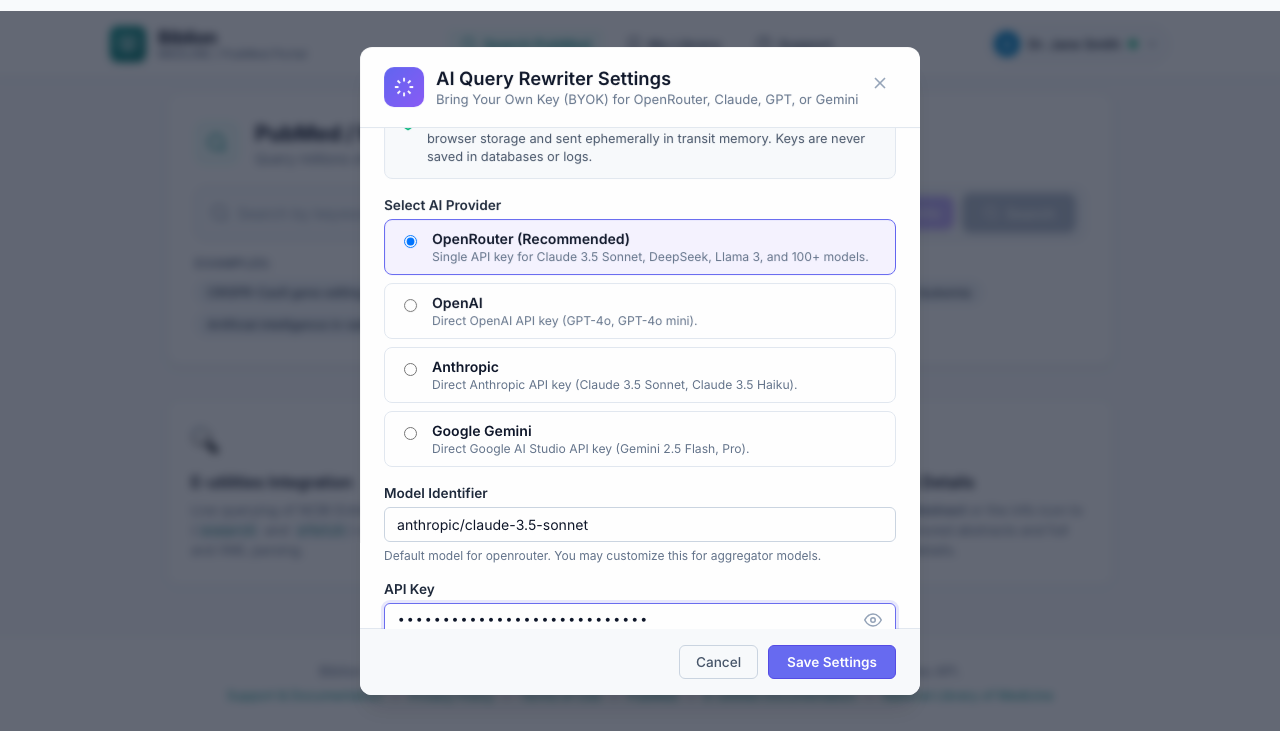
- Open AI Settings (BYOK). In the account menu (click your name), select AI Settings (BYOK).
- In the AI Query Rewriter Settings dialog, select your preferred AI Provider:
- OpenRouter (Recommended): Single API key for Claude 3.5 Sonnet, DeepSeek, Llama 3, and 100+ models.
- OpenAI: Direct OpenAI API key (GPT-4o, GPT-4o mini).
- Anthropic: Direct Anthropic API key (Claude 3.5 Sonnet, Claude 3.5 Haiku).
- Google Gemini: Direct Google AI Studio API key (Gemini 2.5 Flash, Pro).
- (Optional) Adjust the Model Identifier if you want to use a custom model variant instead of the provider's default.
- Paste your key into the API Key field (masked input, placeholder adapts to your provider). Use the eye icon to verify what you pasted.
- Click Save Settings.
Your credentials are encrypted at rest and saved to your account. When configured, an Active: <masked_key> badge confirms your active key.
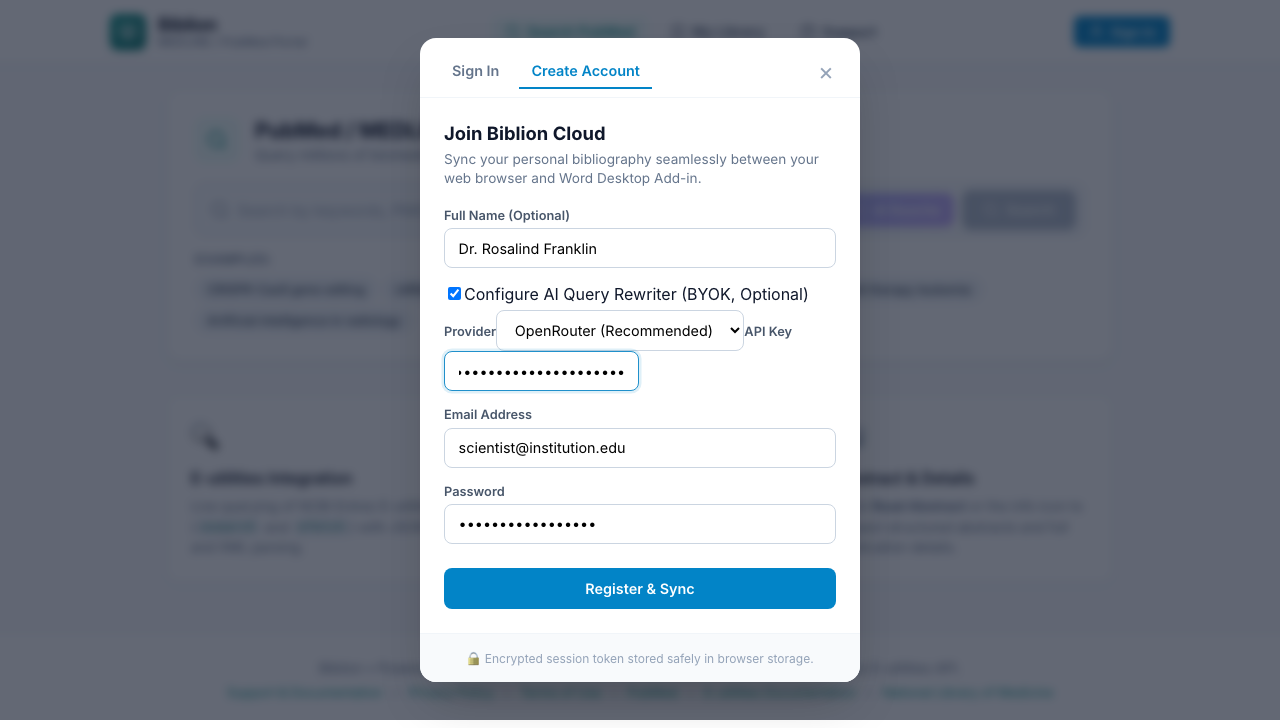
Setting up while registering: the Create Account form has an optional section, Configure AI Query Rewriter (BYOK, Optional), where you can enable the feature and paste a key right away.
#4. Rewrite and Search
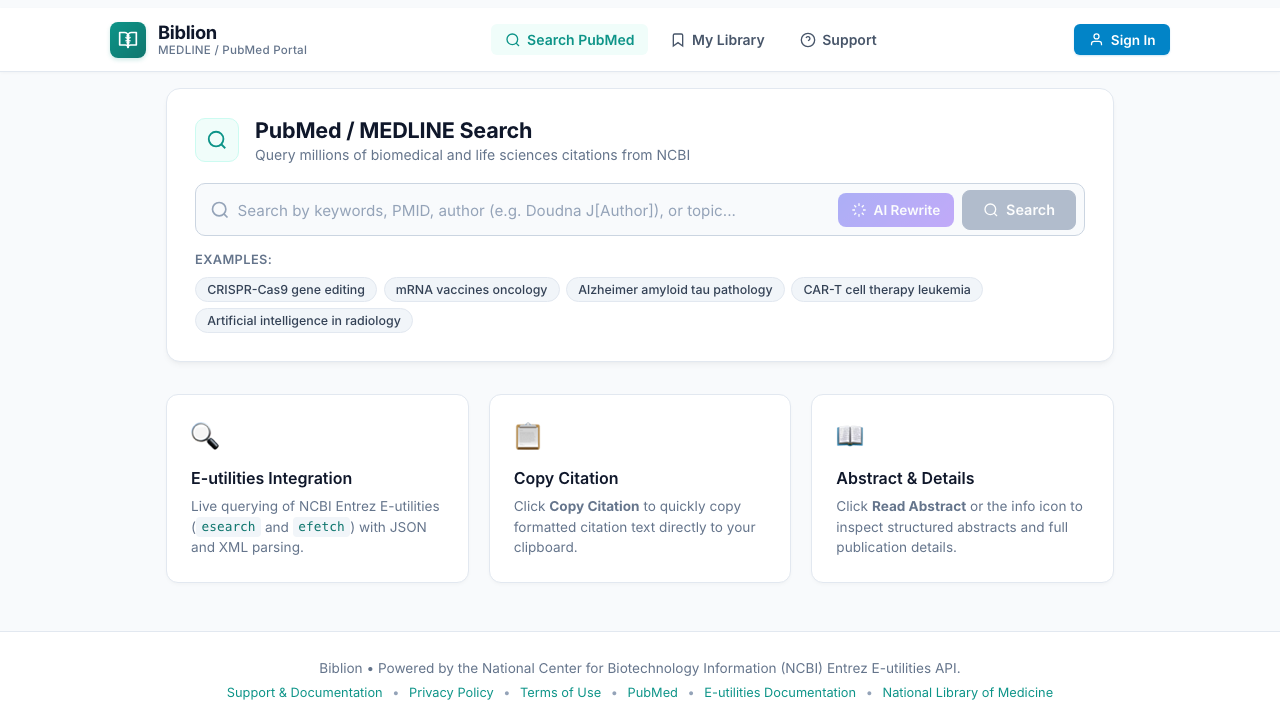
- On the Search page, type your natural language question or topic in the search box (e.g.
heart attack aspirin). - Click the AI Rewrite button (the wand icon) next to the search box. While generating, the button indicates Rewriting....
- The generated NCBI E-utilities boolean query appears directly in the search input box:
- No Auto-Submit: The query is populated in the search field without executing immediately. You can review, add, or delete terms directly in the box.
- No Modal Popup: The diff modal does not open automatically, keeping your workflow seamless.
- Click Search (or press Enter) to submit the query to PubMed.
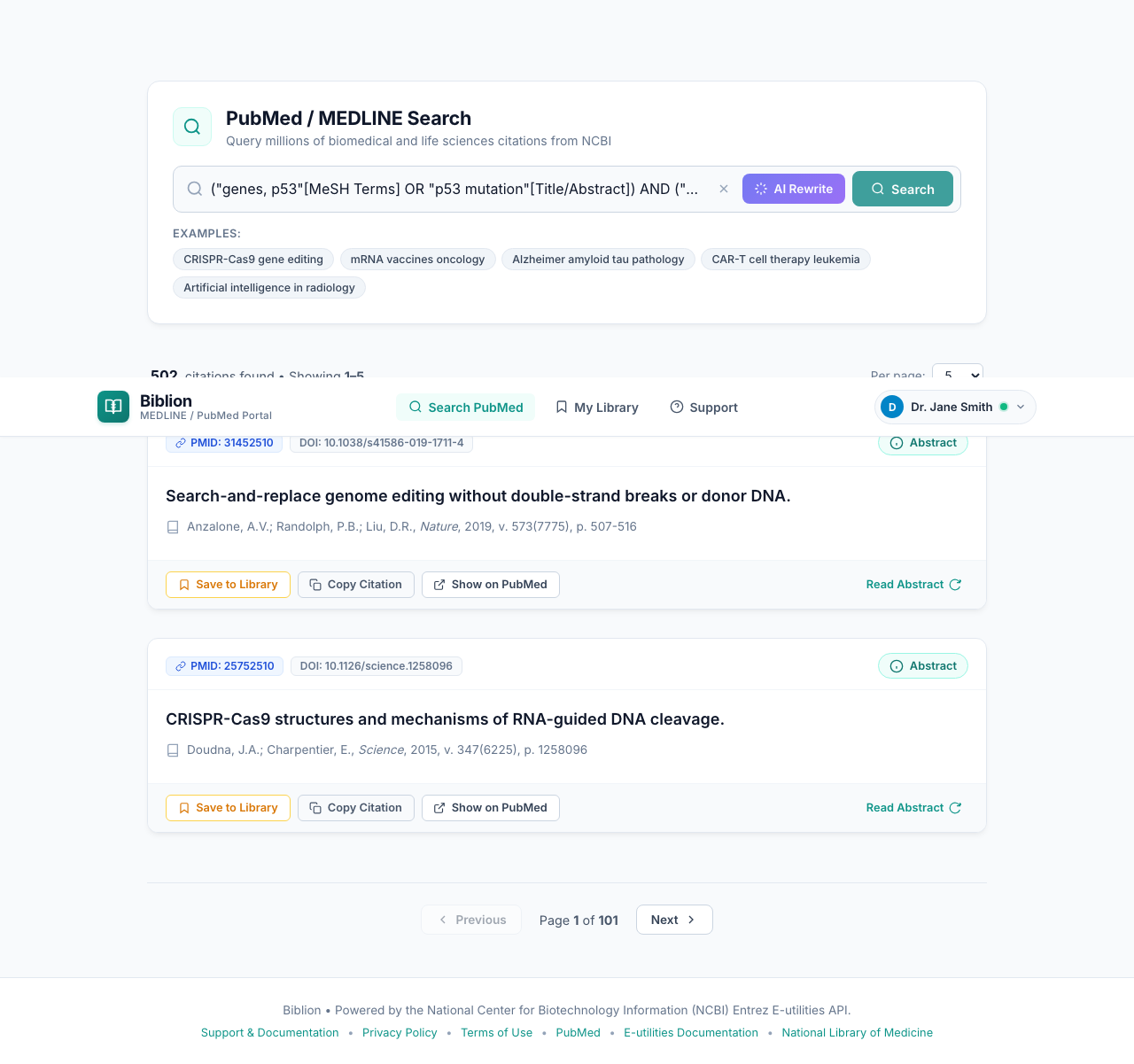
- Once search results load, an AI-Generated PubMed Query card is displayed above the results:
- Shows the active query code and your original query text.
- Copy Query: Copies the optimized PubMed query syntax to your clipboard.
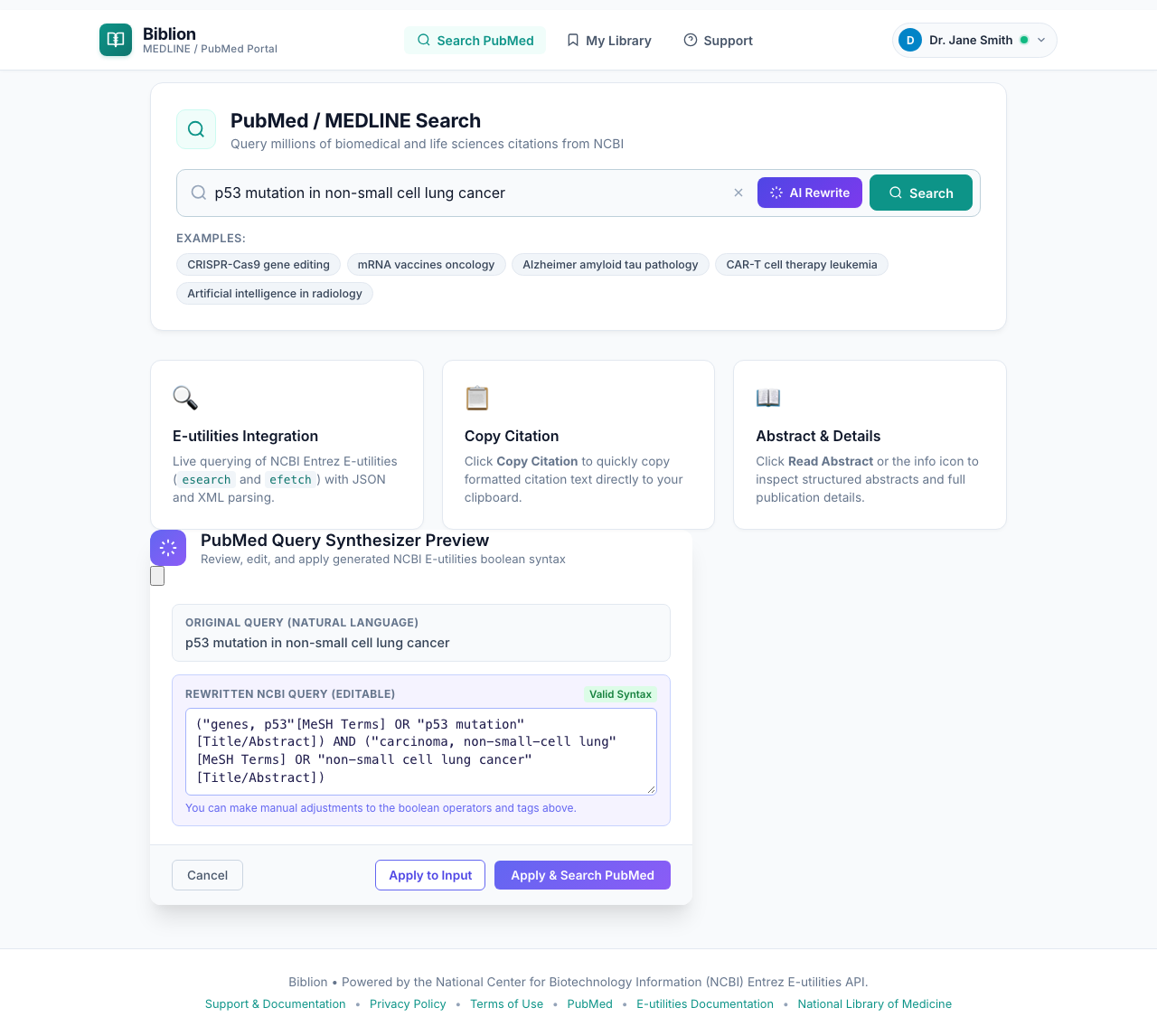
- Edit Syntax: Re-opens the PubMed Query Synthesizer Preview dialog if you want to inspect or modify syntax in a modal view.
- Revert to Original: Re-runs a native PubMed search using your original natural language keywords.
#5. When the Rewritten Query Finds Nothing
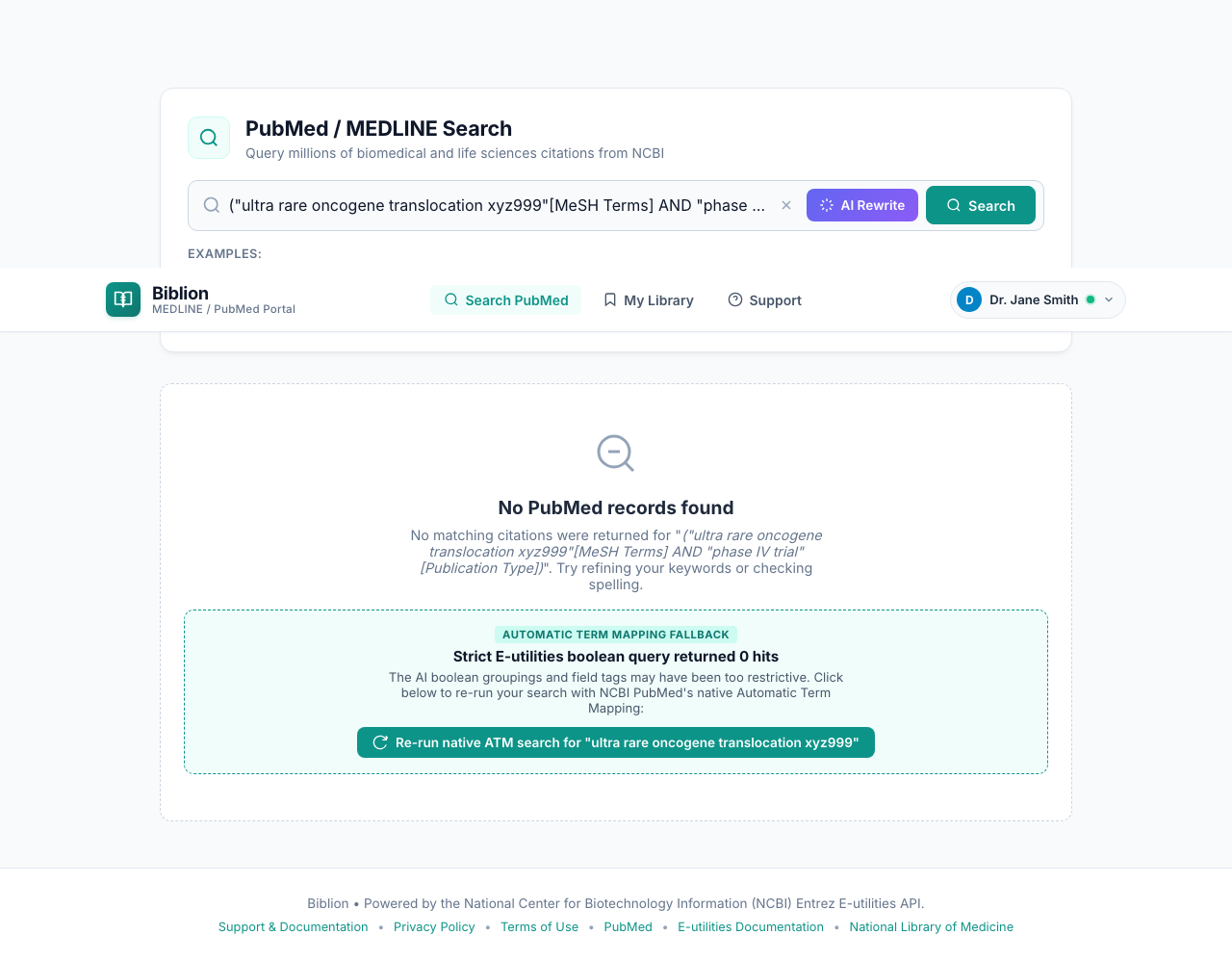
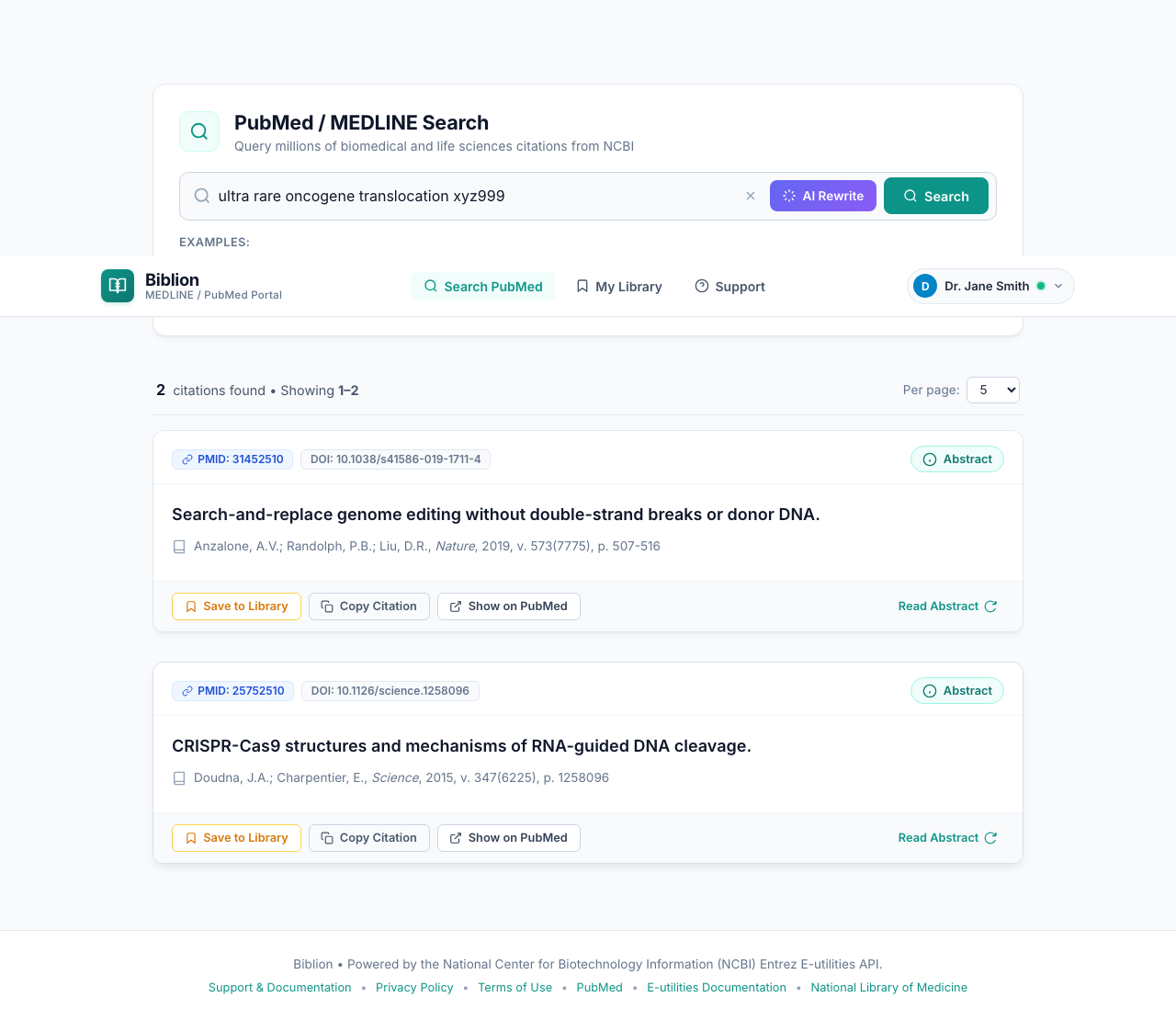
An AI-written query can occasionally be too strict due to restrictive boolean groupings or field tags. If it returns zero results, Biblion displays an Automatic Term Mapping Fallback card:
- Displays the exact executed boolean query and explains why zero hits occurred.
- Click Re-run native ATM search for "…" to search your original keywords with NCBI PubMed's native Automatic Term Mapping instead.
- You can also click Copy AI Query or Edit in Synthesizer to tweak the syntax and try again.
#6. Troubleshooting
| Message | What it means | What to do |
|---|---|---|
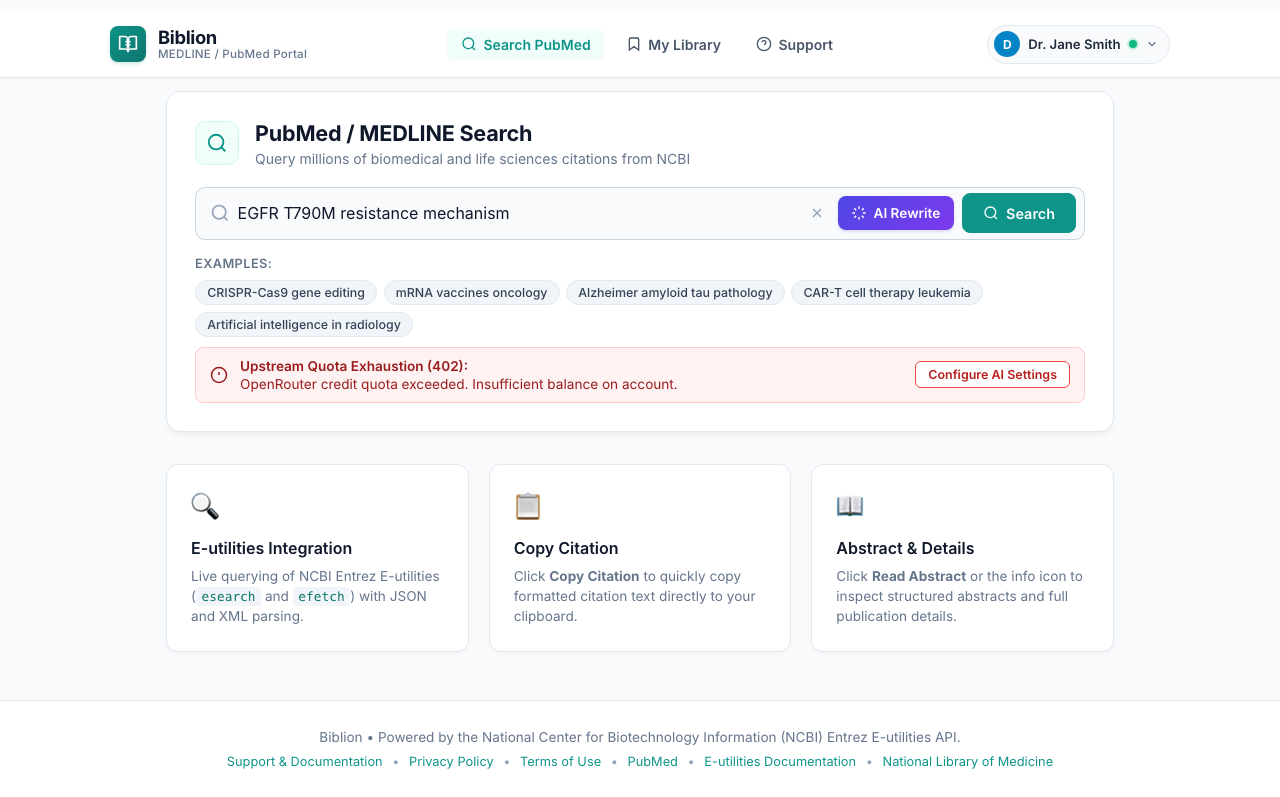
| Upstream Quota Exhaustion (402): | Your AI provider says your balance or credits are used up. | Top up your provider account, then try again. Click Configure AI Settings to review your setup. |
| AI Query Rewriter Notice: | A general problem with the request (invalid key, unreachable upstream provider, timeout). | Re-check your key and provider selection in AI Settings. |
| No AI API key configured | You clicked AI Rewrite before setting a key. | Open AI Settings, select your provider, and paste your API key. |
#7. Privacy & Security
- Encrypted at Rest: API keys are stored encrypted in the backend database using Rails Active Record encryption (
user_ai_credentials) and bound strictly to your authenticated account. - Cross-Session Synchronization: You only need to configure your key once; it synchronizes seamlessly between the desktop Word Add-in and standalone web browser.
- Shared Workstation Isolation: Plaintext keys are never stored in browser
localStorage. When you sign out or another user logs into the same computer, your credentials remain secure and completely inaccessible to other accounts. - Filtered & Ephemeral Processing: AI query reformulations execute on the backend, which proxies upstream to your selected provider. API keys are filtered from server logs, never exposed in API responses (only
masked_keyis returned), and ephemeral in transit memory during requests. - Provider Privacy: Queries sent upstream to your provider (OpenRouter, OpenAI, Anthropic, or Gemini) fall under your provider's API data usage terms. Never include confidential or unreleased manuscript data in a query.
Related: Searching PubMed, Account & Sign-In