#Biblion Account & Sign-In Guide
#1. Why Create a Biblion Account?
You can search PubMed and copy citations without an account. A free Biblion account unlocks the features that make Biblion a long-term research companion:
- Cloud sync: your saved library, collections, tags and notes follow you between Word, your browser and other computers.
- 15-day free trial: every new account starts with a free trial of the full feature set.
- AI Query Rewriter: turn plain-language questions into precise PubMed searches (see the AI Query Rewriter guide).
#2. Create an Account
- Click Sign In in the top-right corner of Biblion.
- In the dialog titled Sign in to Biblion Cloud, open the Create Account tab. The heading changes to Join Biblion Cloud.
- Enter your name, email and a password (at least 8 characters).
- (Optional) Tick Configure AI Query Rewriter (BYOK, Optional) to enable the AI feature and paste your API key now. You can also do this later. See the AI Query Rewriter guide.
- Click Create Account.
The dialog closes, your name appears in the header, and your menu shows a Free Trial badge with the days remaining.
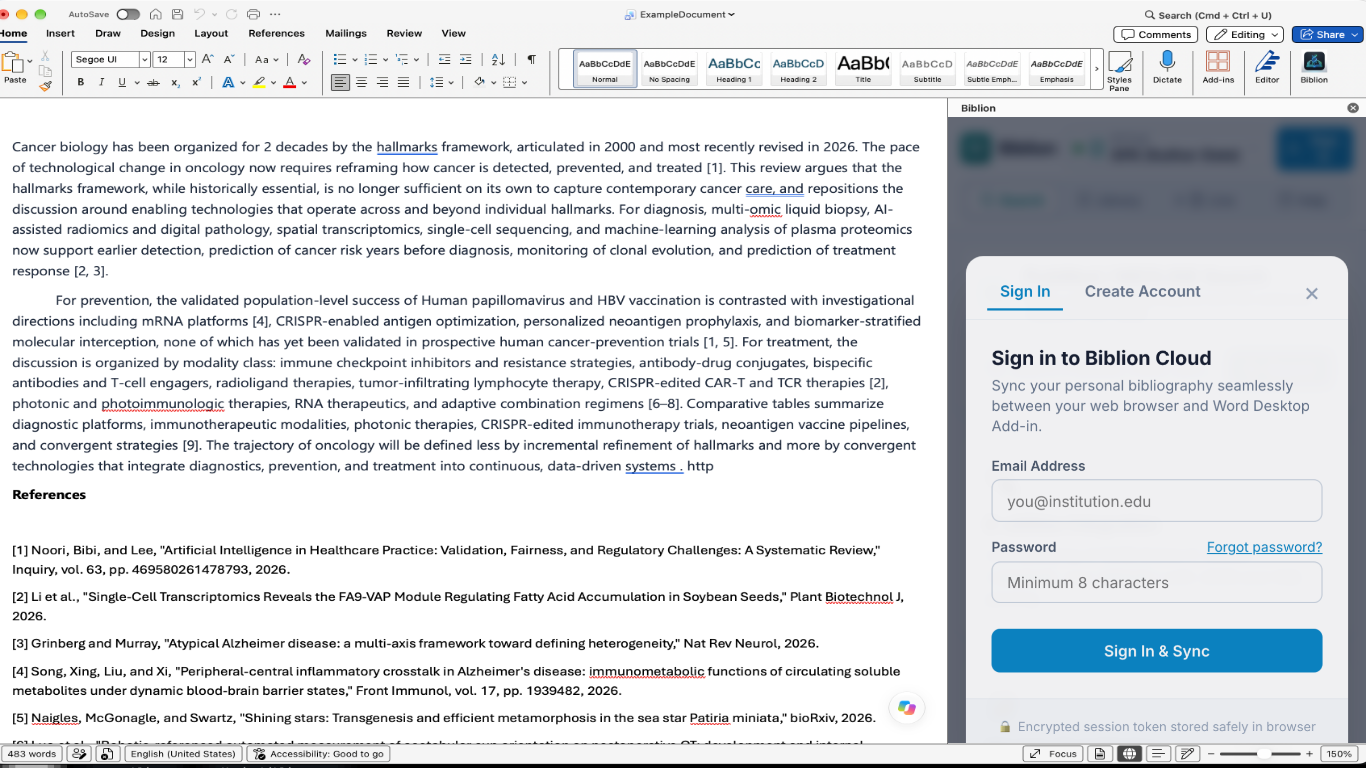
#3. Sign In
- Click Sign In.
- Enter your email and password, then submit.
- Click your name in the header to open the account menu. It contains:
- Subscription & Billing
- Edit Account
- AI Settings (BYOK) (see the AI guide)
- Sign Out
Your library syncs automatically as soon as you are signed in.
#4. Forgot Your Password?
- In the sign-in dialog, click Forgot password?
- Enter your account email and submit.
- Biblion shows a note asking you to check your inbox.
- Open the email and click the reset link. Biblion opens a Reset Password dialog automatically.
- Enter and confirm your new password, then submit. You are signed in immediately.
Use Back in the dialog to return to the sign-in form at any time.
#5. Edit Your Account
- Click your name, then Edit Account.
- Change your name (and other editable details).
- Enter your current password to confirm the change, then submit.
Your new name appears in the header straight away.
#6. Sign Out (Especially on Shared Computers)
Click your name, then Sign Out. Biblion will:
- end your session and remove your sign-in token from this browser,
- securely clear active session authentication and cached access to your encrypted AI credentials, and
- clear the local copy of your library from this device.
Your data stays safe in your cloud account and returns the next time you sign in. This makes Sign Out the right choice on lab, library or conference computers.
Tip: If you use Biblion without signing in, your local library is also cleared when the session ends. Sign in if you want your references kept.
#7. Quick Reference
| I want to... | Do this |
|---|---|
| Start using cloud features | Sign In → Create Account |
| Recover access | Sign In → Forgot password? |
| Change my name | Account menu → Edit Account |
| Check trial days / billing | Account menu → Subscription & Billing |
| Protect my data on a shared PC | Account menu → Sign Out |
Next: Subscription & Billing